
- Open the image or PDF in TrueScale Print.
- Set the size: type the finished width, or calibrate from a known distance.
- Pick A4 or Letter and an overlap (10 mm / ⅜ in is plenty).
- Download the PDF and print at Actual size / 100%.
- Trim on the dashed lines and tape the sheets together, matching the diagonals.
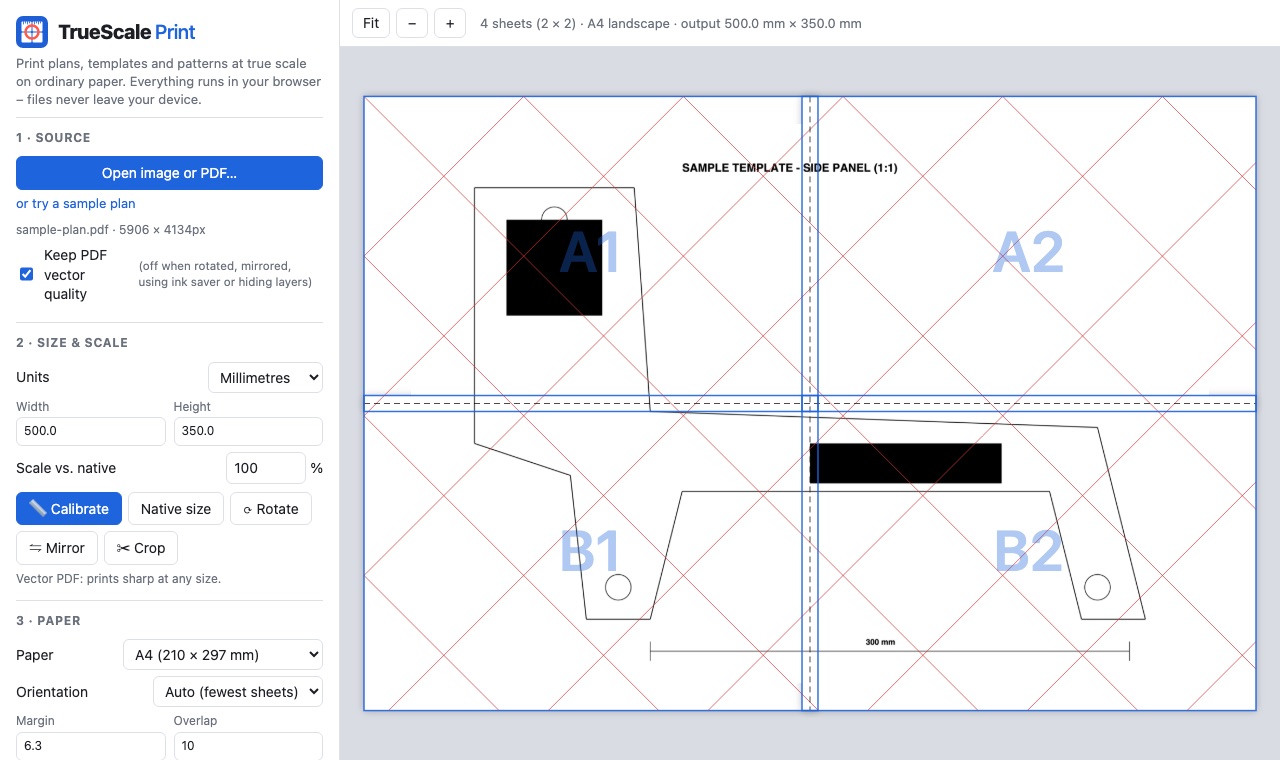
1. Open your file
TrueScale Print opens PDFs and images (PNG, JPG, WebP, SVG, GIF, BMP). You can drag the file onto the page, use Open image or PDF…, or paste a screenshot. Nothing is uploaded – the file is processed inside your browser.
2. Decide how big it should be
There are three ways to set the finished size, depending on what you have:
- A PDF drawn to scale (most plans and patterns) opens at its true size. Leave it alone.
- You know the finished width or height – type it into Width or Height. The other dimension follows automatically.
- You know one real measurement in the picture – a dimension line, a ruler in a photo, a grid square. Use Calibrate: click both ends and type the real distance.
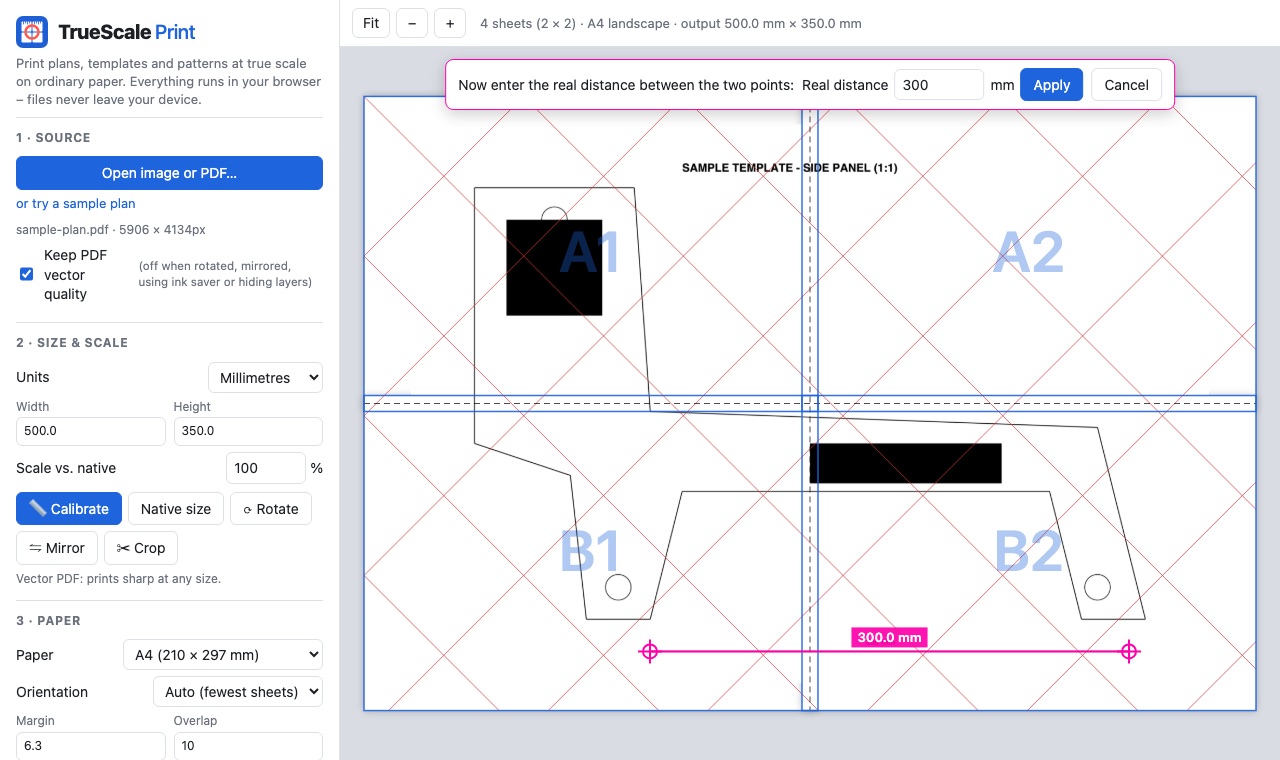
3. Choose paper, margin and overlap
Pick A4 or US Letter. Orientation is chosen automatically to use the fewest sheets. The margin is the strip at the paper edge your printer can’t reach (about 6 mm / ¼ in on most home printers). The overlap is printed on both neighbouring sheets, giving you something to glue or tape.
Sheets with nothing on them are skipped automatically. Click any sheet in the preview to include or skip it yourself.
4. Print and check the ruler
Download the PDF and print just the first sheet. It carries a 100 mm (or 4 in) ruler and a test square. Measure them with a steel rule; if they’re right, print the rest.
Print settings that keep the scale
Most “wrong size” prints come from the print dialog, not the file. Whatever program you print from:
- Choose Actual size or 100%. In Chrome or Edge, set Scale to Default or 100 – not “Fit to printable area”.
- On a Mac, untick Scale to fit paper size under Paper Handling.
- Turn off borderless printing; it enlarges the page slightly so the ink reaches the edge.
- Make sure the paper size in the print dialog matches the paper you chose in TrueScale Print (A4 vs. US Letter).
5. Assemble
- Lay the sheets out using the assembly guide on page one – each sheet is labelled (A1, A2, B1…) with arrows to its neighbours.
- Trim one edge of each join along the dashed line.
- Overlap it onto its neighbour, match the diagonal lines, and tape or glue-stick it in place.
- Work in rows, then join the rows. The diagonals make even a 1 mm slip obvious.
Try it on your own file
Open TrueScale PrintFAQ
Can I print a big image across pages without special software?
Yes. TrueScale Print runs in your web browser – open the file, choose the size and paper, and download a ready-to-print PDF. Nothing to install and no account.
How much overlap should I use?
About 10 mm (3/8 in) is enough for tape or a glue stick. Use more if you plan to glue sheets edge-to-edge onto board.
Why is my printed poster slightly smaller than it should be?
The print dialog is almost always set to Fit or Shrink. Choose Actual size or 100% and turn off borderless printing.