
Best: make a drawing at scale 1:1 on a sheet big enough for the part, export it to PDF and open it in TrueScale Print – it opens at true size. Quickest: take a straight-on screenshot in parallel/orthographic view, open it, and Calibrate from a dimension you know.
Route A: export a 1:1 PDF (most accurate)
A PDF exported at 1:1 keeps the drawing as vector lines, so curves and holes print razor sharp and TrueScale Print opens it at its real size with no calibration.
Fusion 360
- Create a Drawing from your design.
- Place the view and set its scale to 1:1. Choose a sheet size big enough for the part (for example A0 or ARCH E) – the sheet size doesn’t matter to TrueScale Print, only the scale.
- Output the drawing as a PDF.
Onshape
- Create a Drawing, insert the view and set the view scale to 1:1 on a large enough sheet.
- Export the drawing as PDF.
FreeCAD
- In the TechDraw workbench, insert a page and a view with scale 1.
- Export the page as PDF.
SketchUp
SketchUp is easiest with the screenshot route below. If your edition can print or export a PDF at a set scale, switch to Camera → Parallel Projection, pick a standard view (Top, Front…), untick “Fit to page” and set the scale to 1:1 before saving as PDF.
Whichever program you use, check one known dimension with Calibrate after opening the PDF – it takes ten seconds and catches a wrong scale setting before you print.
Open your 1:1 PDF
Open TrueScale PrintRoute B: calibrate a screenshot (quickest)
- Switch to an orthographic view. Perspective views distort sizes – use parallel projection / orthographic and a straight-on standard view.
- Show a long, known dimension – overall length is ideal. Zoom so the part fills the screen.
- Screenshot and open it in TrueScale Print (you can paste straight from the clipboard).
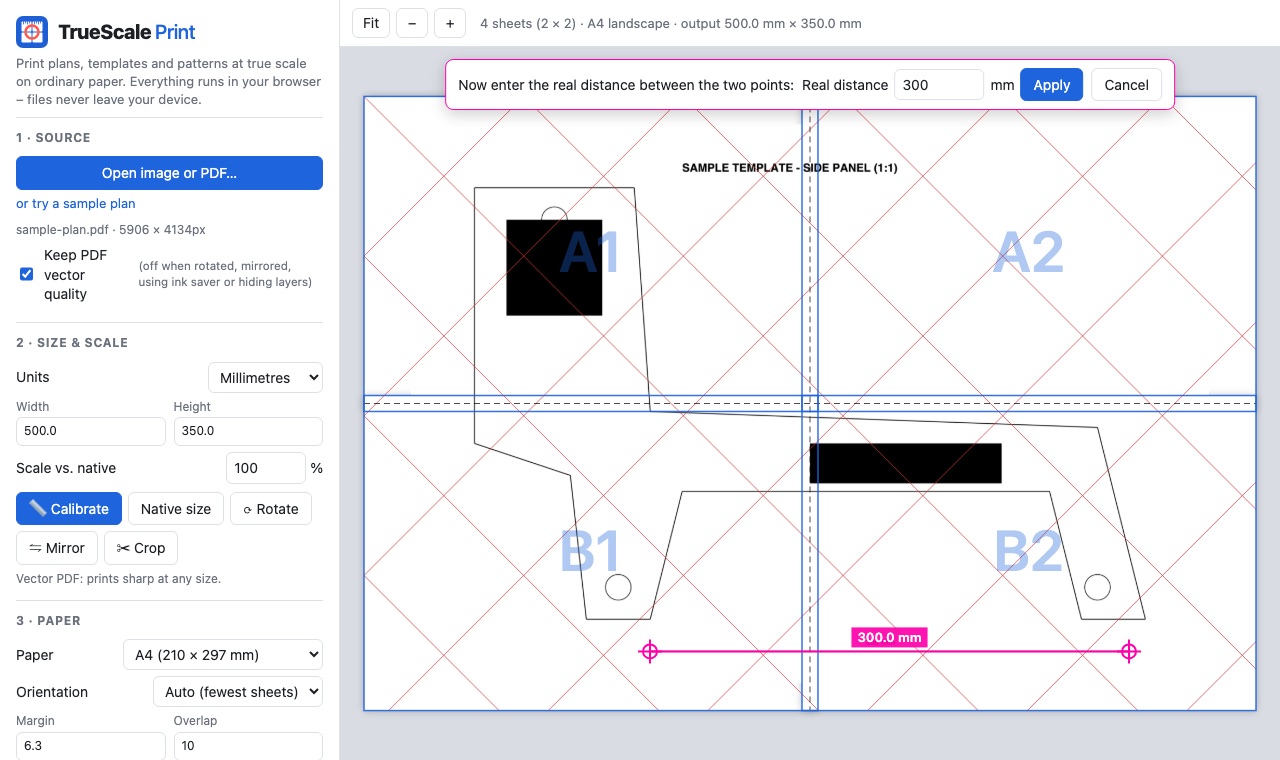
- Calibrate: click the two ends of the known dimension and type its length.
- Crop away the CAD toolbars, then print at Actual size.
A screenshot is limited by your screen resolution: a 1000 mm part across a 2500-pixel-wide screenshot gives about 0.4 mm per pixel. Fine for many templates; for tight work, use Route A.
Print settings that keep the scale
Most “wrong size” prints come from the print dialog, not the file. Whatever program you print from:
- Choose Actual size or 100%. In Chrome or Edge, set Scale to Default or 100 – not “Fit to printable area”.
- On a Mac, untick Scale to fit paper size under Paper Handling.
- Turn off borderless printing; it enlarges the page slightly so the ink reaches the edge.
- Make sure the paper size in the print dialog matches the paper you chose in TrueScale Print (A4 vs. US Letter).
FAQ
Does TrueScale Print open SketchUp or Fusion files directly?
No – export a PDF at 1:1 from your CAD program, or use a screenshot and calibrate it from a known dimension.
Why use orthographic view for screenshots?
Perspective views make nearer parts look bigger, so measurements vary across the image. Orthographic (parallel) views keep everything at one scale.
How accurate is a calibrated screenshot?
It is limited by pixels: divide the part length by the screenshot width in pixels. Calibrating across a long dimension minimises the error.