
- Scan the diagram (or photograph it straight on).
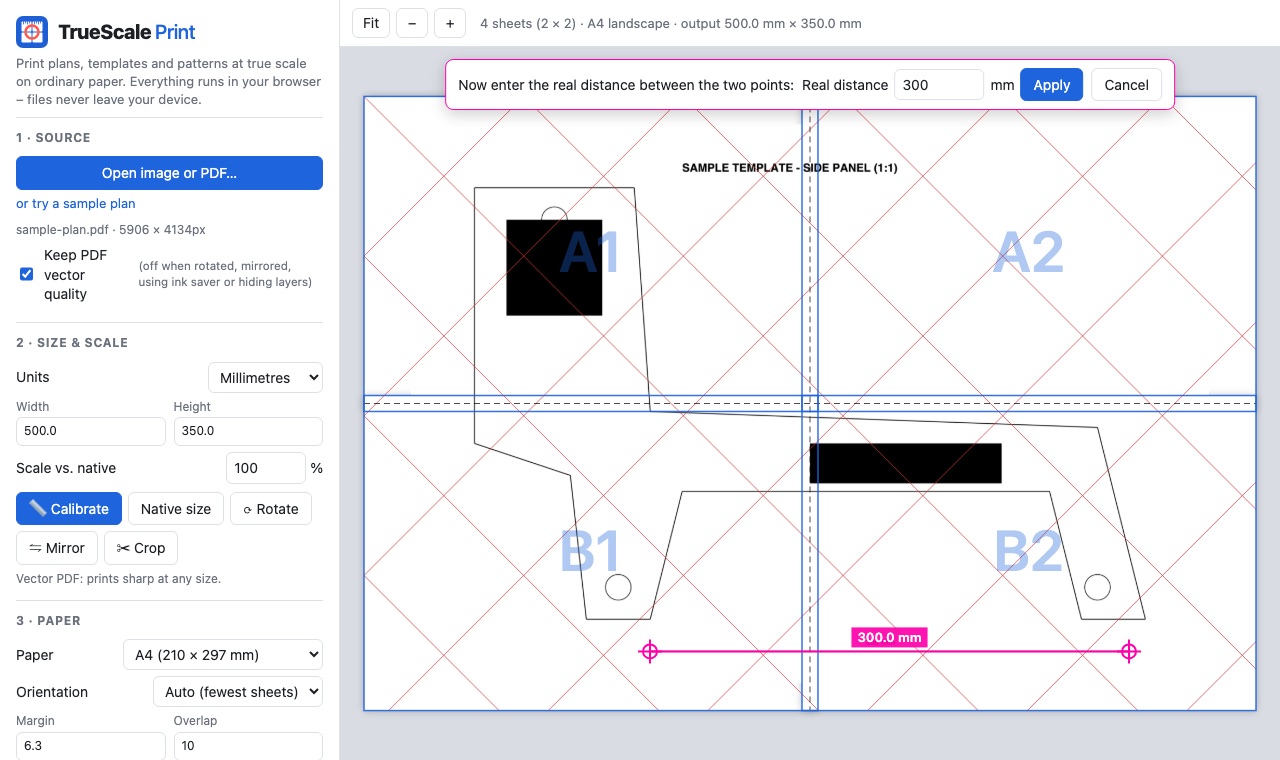
- Open it in TrueScale Print and click Calibrate.
- Click across as many grid squares as possible – say 10 – and type their real size (10 in).
- Crop to the pattern, print at Actual size and assemble.
1. Capture the diagram flat and square-on
A flatbed scan is best: it has no perspective distortion. If you photograph it, lay the page flat, hold the camera directly above the centre, keep the edges of the page parallel to the frame, and use good, even light. TrueScale Print scales uniformly but can’t correct a tilted photo, so a skewed shot will be skewed in print.
2. Calibrate across the grid
Open the image and click Calibrate. Zoom in (scroll wheel) and click a grid line intersection, then click another intersection as far away as possible along the same row – ten or more squares. Type the real distance: ten 1-inch squares is 10 in; ten 5 cm squares is 50 cm. Check the other direction by measuring a column the same way – if it’s noticeably different, the photo is tilted; rescan or reshoot.
3. Clean it up and print
- Crop to the pattern pieces you need.
- Turn on the Square grid at the original grid size (for example 1 in) – it prints a fresh grid at full size you can use to check and redraw curves.
- Yellowed paper printing grey? Ink saver lightens large dark areas; or brighten the scan before opening it.
Print settings that keep the scale
Most “wrong size” prints come from the print dialog, not the file. Whatever program you print from:
- Choose Actual size or 100%. In Chrome or Edge, set Scale to Default or 100 – not “Fit to printable area”.
- On a Mac, untick Scale to fit paper size under Paper Handling.
- Turn off borderless printing; it enlarges the page slightly so the ink reaches the edge.
- Make sure the paper size in the print dialog matches the paper you chose in TrueScale Print (A4 vs. US Letter).
4. True up the lines
Small diagrams have thick lines. Once printed, the line may be a few millimetres wide. Draw your cutting line down the centre with a ruler and French curve, and add seam allowance if the original pattern didn’t include it.
Enlarge your diagram
Open TrueScale PrintFAQ
How do I scale up a pattern that says 1 square = 1 inch?
Open a scan or photo in TrueScale Print, click Calibrate, click across several grid squares and type their real size (for example 10 squares = 10 in). Then print at Actual size.
Can I use a phone photo instead of a scan?
Yes, if you shoot straight down on a flat page. Check by measuring both a row and a column of squares; if they disagree, the photo is tilted.
Do I need to redraw the pattern?
No – it prints at full size directly. You may want to true up thick lines with a ruler and curve.